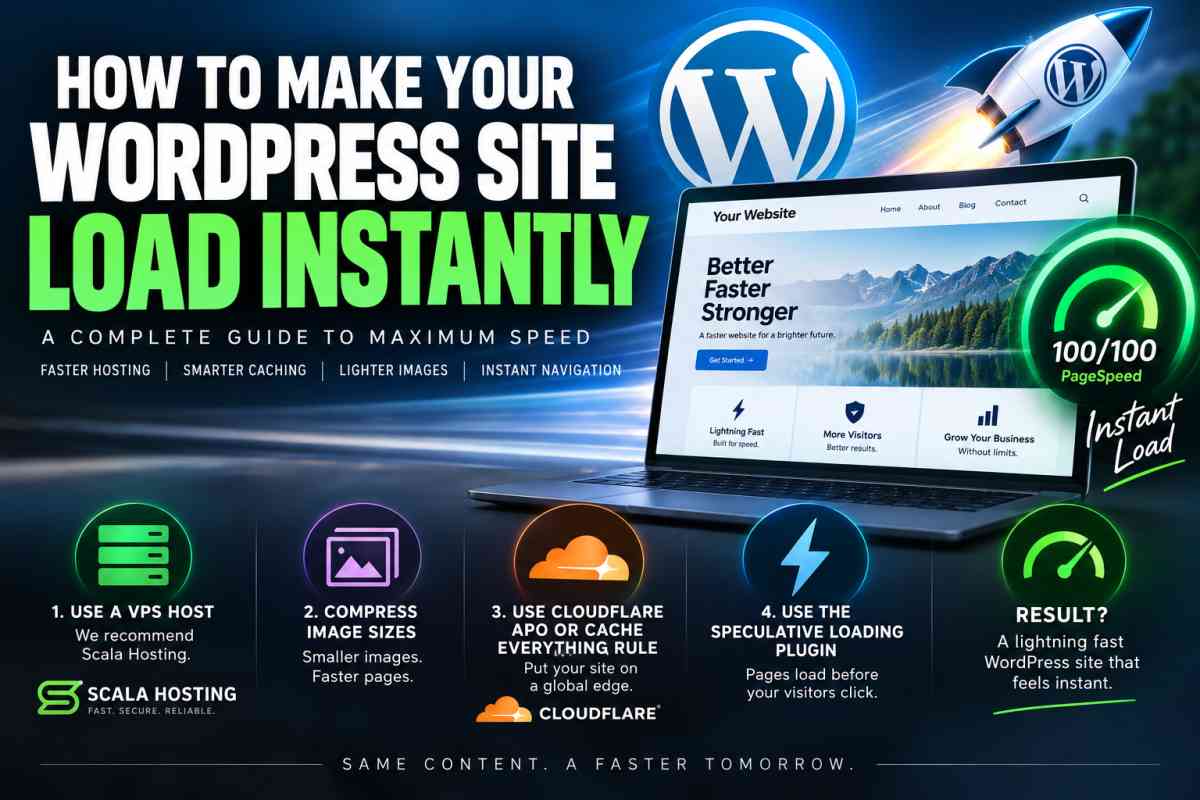


WordPress websites do not have to feel slow.
With the right hosting, caching and optimisation setup, a WordPress site can begin loading almost immediately, even when the visitor is thousands of kilometres away from the physical web server.
The biggest mistake website owners make is trying to fix a slow website by installing more optimisation plugins while leaving the site running on underpowered hosting. Plugins can improve performance, but they cannot compensate for a server that is already struggling.
For maximum WordPress performance, start with the infrastructure and work forward from there.
The most important step: move WordPress to a VPS
The single biggest improvement you can make to a busy WordPress website is moving away from cheap shared hosting and onto a Virtual Private Server, or VPS.
Shared hosting means your website is competing with potentially hundreds of other sites for CPU, memory, database resources and disk performance. If another customer suddenly consumes excessive resources, your website can slow down even though nothing has changed on your end.
A VPS gives your website dedicated or guaranteed computing resources and far greater control over the server environment.
For WordPress sites where performance matters, I recommend ScalaHosting Managed Cloud VPS.
ScalaHosting’s current VPS infrastructure offers NVMe storage, processors running at up to 4.1 GHz, 10 Gbps networking and support for OpenLiteSpeed and LiteSpeed caching when using SPanel.
The important part is not simply having a VPS. You want fast CPU performance, sufficient RAM, NVMe storage and a properly configured web server.
WordPress is heavily dependent on PHP and database response times. Giving it faster underlying infrastructure reduces the amount of time the origin server needs to generate a page before caching is even considered.
Use OpenLiteSpeed or LiteSpeed with page caching
Once WordPress is running on a capable VPS, the next objective is reducing the amount of work the server performs for each visitor.
A normal uncached WordPress request can involve PHP execution, database queries, theme processing, plugin execution and page generation before HTML is finally sent to the browser.
Full-page caching avoids repeating most of that work.
If your VPS supports OpenLiteSpeed or LiteSpeed, the LiteSpeed Cache WordPress plugin is an effective option because it can integrate directly with the web server rather than relying entirely on PHP-based caching.
Server caching is particularly important for requests that do reach your origin.
Even when you later introduce Cloudflare edge caching, there will always be circumstances where a visitor receives a cache miss or bypasses the cache entirely.
Your origin therefore still needs to be fast.
Put Cloudflare in front of WordPress
The next major performance improvement comes from moving as much traffic as possible away from your origin server.
Cloudflare can cache static files such as images, CSS and JavaScript close to visitors around the world.
However, the biggest improvement comes when the HTML itself is cached at Cloudflare’s edge.
There are two main ways I would approach this on WordPress:
Option 1: Cloudflare APO
Cloudflare Automatic Platform Optimization, or APO, is designed specifically for WordPress.
Ordinarily, Cloudflare caches static resources while HTML requests may still need to travel back to the WordPress server.
APO changes this by caching eligible WordPress HTML at Cloudflare’s edge network. Cloudflare says this removes unnecessary round trips to the origin and can substantially improve Time to First Byte because the page can be delivered from an edge location instead.
For a visitor in Melbourne accessing a website hosted in the United States, this can make an enormous difference. Instead of waiting for every page request to cross the Pacific, the visitor may receive the HTML from a nearby Cloudflare edge location.
Cloudflare’s WordPress integration also handles cache invalidation when content is changed, helping prevent visitors from repeatedly receiving outdated versions of posts and pages.
When APO is working correctly, Cloudflare recommends checking for response headers including:
CF-Cache-Status: HIT
cf-apo-via
cf-edge-cache: cache,platform=wordpress
These indicate that Cloudflare and WordPress caching are communicating correctly.
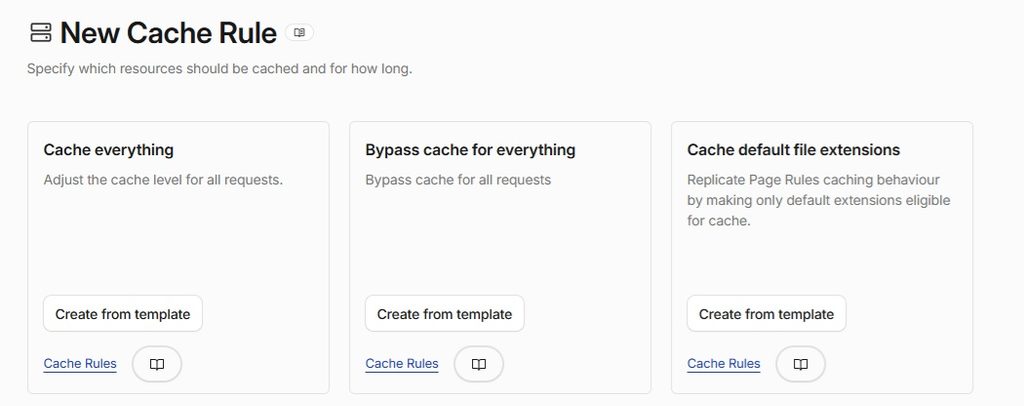
Option 2: Cache Everything with Cloudflare Cache Rules
Another approach is using Cloudflare Cache Rules to cache eligible HTML yourself.
This gives experienced administrators considerably more control over which URLs are cached and which requests bypass the cache.
A properly designed Cache Everything configuration can make WordPress extremely fast because most anonymous visitors never need to contact the origin server at all.
But this requires more care than APO.
You must exclude dynamic and private areas including WordPress administration, login pages, shopping carts, checkout pages, authenticated sessions and any other content that must remain personalised.
Incorrectly caching these areas can create serious problems.
For most ordinary WordPress publishers, APO is easier to manage. For administrators who understand Cloudflare’s cache rules, cookies and bypass conditions, custom HTML edge caching offers much greater control.
Do not blindly combine multiple overlapping full-page caching systems. Cloudflare itself warns that running APO alongside other caching plugins can sometimes produce unexpected behaviour, so every caching layer should be tested after activation.
Here is the best cache everything rule in the form of a Cloudflare expression.
http.host in {"yourwebsitehere" "www.yourwebsitehere.com"}
and not http.request.uri.path contains "."
and http.request.uri.query eq ""
and not http.request.uri.path contains "/wp-admin"
and not http.request.uri.path contains "/wp-login"
and not http.request.uri.path contains "/wp-json"
and not http.request.uri.path contains "/wp-cron"
and not http.request.uri.path contains "/xmlrpc"
and not http.request.uri.path contains "/feed"
and not http.request.uri.path contains "sitemap"
and not http.request.uri.path contains "/cart"
and not http.request.uri.path contains "/checkout"
and not http.request.uri.path contains "/my-account"
and not http.cookie contains "wordpress_logged_in_"
and not http.cookie contains "wp-postpass_"
and not http.cookie contains "comment_author_"
and not http.cookie contains "woocommerce_"
This expression targets clean, public WordPress page requests that are generally safe to cache at Cloudflare.
It only matches requests for the listed domains where the URL has no file extension and no query string, while excluding:
WordPress admin, login, API, cron, XML-RPC, feeds, sitemaps, WooCommerce account/cart/checkout pages, and visitors carrying logged-in, password-protected, commenter or WooCommerce cookies.
In practical terms, it is designed to cache normal public HTML pages while avoiding dynamic, private or user-specific content.
Compress every image before it reaches the visitor
Large images are one of the most common causes of unnecessarily slow WordPress pages.
A photograph downloaded directly from a camera or stock image provider can easily consume several megabytes.
There is almost never a reason to deliver a multi-megabyte image inside a normal news article or blog post.
Resize images to the dimensions actually required by the website and compress them before publication.
Modern formats such as WebP can substantially reduce image size compared with older formats while maintaining good visual quality. WordPress itself recommends choosing appropriate image dimensions, compression and modern formats such as WebP as part of performance optimisation.
AVIF can provide even smaller files in many situations where your WordPress configuration and visitor browsers support it.
A 4 MB image reduced to 150 KB means the visitor downloads around 96 per cent less data for that image.
Apply that across several images on a page and the difference becomes enormous.
Also make sure WordPress is not loading a 2500-pixel image into a space that only displays it at 600 pixels wide.
Do not overload WordPress with plugins
Every plugin should have a reason to exist.
A WordPress website with 40 plugins is not automatically slower than one with 10, because plugin quality and behaviour matter more than the raw number.
However, poorly written plugins can introduce additional database queries, PHP processing, JavaScript, CSS files, external API requests and background tasks.
Remove plugins you no longer use.
Pay particular attention to plugins that load resources on every page even though their functionality is only needed in one small part of the site.
Plugins that make external requests to advertising networks, analytics providers, social platforms and third-party widgets can also make a page appear slow even when your own server is extremely fast.
Use the WordPress Speculative Loading plugin
One of the most interesting ways to make WordPress navigation feel almost instantaneous is Speculative Loading.
The plugin was developed by the WordPress Performance Team and uses the browser’s Speculation Rules API.
Instead of waiting until someone clicks a link before beginning to load the destination, compatible browsers can anticipate where the visitor is likely to go next and begin preparing that page beforehand.
The functionality is now partially incorporated into WordPress core. WordPress 6.8 introduced conservative prefetching by default, while the Speculative Loading plugin provides additional controls and defaults to more aggressive prerendering behaviour.
This becomes particularly powerful when combined with Cloudflare edge caching.
Imagine someone opens your homepage.
The homepage itself is delivered from Cloudflare’s edge.
While they are reading it, the browser begins preparing an article they appear likely to click.
That article is also already cached at Cloudflare.
When the visitor clicks, much of the work has effectively already happened.
The result can feel less like loading another webpage and more like opening another screen inside an application.
That perceived speed matters.
Use object caching for database-heavy WordPress sites
Full-page caching helps anonymous visitors, but WordPress still relies heavily on its database behind the scenes.
For larger websites, Redis object caching can reduce repeated database work by keeping frequently requested objects in memory.
This is especially useful for busy WordPress installations, WooCommerce stores, logged-in environments and sites with complicated queries.
Object caching should complement full-page caching rather than replace it.
Think of the layers this way:
Page cache: avoids rebuilding the entire page.
Object cache: reduces repeated database work when WordPress does need to execute.
Cloudflare edge cache: prevents many requests from reaching your server in the first place.
Used together, each layer reduces work for the next one.
Keep PHP current
PHP performance has improved significantly between major releases.
WordPress sites should generally run on a recent supported PHP version once compatibility with the site’s plugins and theme has been confirmed.
Do not leave a production website running on an old PHP release simply because it still works.
Updating PHP can improve performance while also keeping the underlying application environment supported and secure. – Use PHP 8.3
Optimise the WordPress database
Years of publishing, deleting posts, changing plugins and saving revisions can leave a WordPress database carrying unnecessary data.
Depending on the site, this can include revisions, expired transients, abandoned plugin tables and other records that are no longer needed.
Database optimisation will not magically turn a slow website into a fast one, but maintaining a clean database can reduce unnecessary processing, particularly on large WordPress installations.
Always back up the database before making structural changes or deleting tables.
Reduce unnecessary JavaScript
Modern WordPress themes can load large amounts of JavaScript.
Page builders, advertising systems, analytics, social widgets, consent systems and third-party services can increase the amount of work the visitor’s browser must perform even after the HTML has arrived.
This is why a website can have an excellent server response time but still feel slow.
Remove scripts that are not required and delay non-critical JavaScript where appropriate.
Be careful with aggressive JavaScript optimisation.
Combining, delaying or modifying scripts without testing can break navigation menus, advertising, analytics, galleries and other interactive components.
Faster is useless if the website stops working properly.
Use HTTP/3 where available
If your server and CDN support HTTP/3, enable it.
HTTP/3 uses QUIC rather than traditional TCP and can improve connection performance, particularly on mobile networks and connections experiencing packet loss.
Cloudflare can provide HTTP/3 between visitors and its edge even when your underlying WordPress infrastructure uses a different protocol behind Cloudflare.
It is another small piece of the overall performance stack rather than a magic speed switch by itself.
Keep CSS under control
Large themes and page builders can produce considerable CSS.
Minification can reduce file size, but the larger objective should be avoiding huge amounts of unused CSS being delivered in the first place.
Critical CSS techniques can also allow the browser to render the visible portion of a page earlier rather than waiting for every stylesheet to finish processing.
As with JavaScript optimisation, test carefully across mobile and desktop layouts.
Lazy-load content below the fold
Images and embedded media that are far below the visible portion of a page usually do not need to download immediately.
Lazy loading delays those resources until they are approaching the visitor’s viewport.
This reduces the amount of data and browser work required during the initial page load.
However, do not lazy-load the main hero image or Largest Contentful Paint image simply because a performance plugin gives you the option.
The most important visible image should normally begin loading immediately.
Avoid redirects wherever possible
Every unnecessary redirect adds another step before the browser reaches the final page.
One redirect is usually insignificant, but chains such as:
http://example.com
to
https://example.com
to
https://www.example.com
to
another canonical URL
create unnecessary latency.
Configure WordPress, Cloudflare and the web server so visitors reach the final canonical URL as directly as possible.
Keep the origin fast even when using Cloudflare
A common mistake is assuming that once Cloudflare caches a website, origin performance no longer matters.
It still matters.
Caches expire. Pages are updated. Some requests bypass caching. Bots hit uncached URLs. Logged-in users reach the origin. New pages must be generated before they can be cached.
Your server is still the source of truth.
That is why the VPS remains the foundation of the entire performance strategy.
Cloudflare can hide a slow origin during cache hits, but a genuinely fast WordPress installation should still respond quickly when Cloudflare reports a MISS.
The ideal WordPress speed stack
For a WordPress news, publishing or business website where maximum performance is the objective, my preferred configuration looks something like this:
- ScalaHosting Managed VPS
- OpenLiteSpeed or LiteSpeed
- Server-side full-page caching
- Redis object caching where appropriate
- Cloudflare CDN
- Cloudflare APO or carefully configured HTML edge caching
- Compressed WebP or AVIF images
- Speculative Loading
- Modern PHP
- Minimal unnecessary JavaScript and plugins
- HTTP/3
- Regular performance testing
The important part is understanding that there is no single WordPress speed plugin that does everything.
Maximum performance comes from several layers working together.
- The VPS generates pages quickly.
- Server caching reduces PHP and database processing.
- Redis reduces repeated database work.
- Cloudflare moves content closer to the visitor.
- Image compression reduces transfer size.
- Speculative loading starts preparing likely navigation before the visitor even clicks.
When all of those layers are properly configured, WordPress can become exceptionally fast.
The goal is to make the origin almost irrelevant
For anonymous visitors, the ultimate performance objective is simple: make them contact your WordPress server as little as possible.
If a visitor requests an article and Cloudflare can deliver the HTML, CSS, JavaScript and images directly from its edge network, very little has to travel back to your VPS.
Then, when that visitor appears likely to open another article, speculative loading can begin preparing it before the click occurs.
That combination is where WordPress starts to feel almost instant.
A powerful VPS remains critical because every cache eventually needs an origin, but the fastest WordPress architecture is one where the origin does the heavy work once and caching infrastructure handles as much of the repeat traffic as possible.
That is a much better strategy than installing ten different “speed optimisation” plugins and hoping for the best.