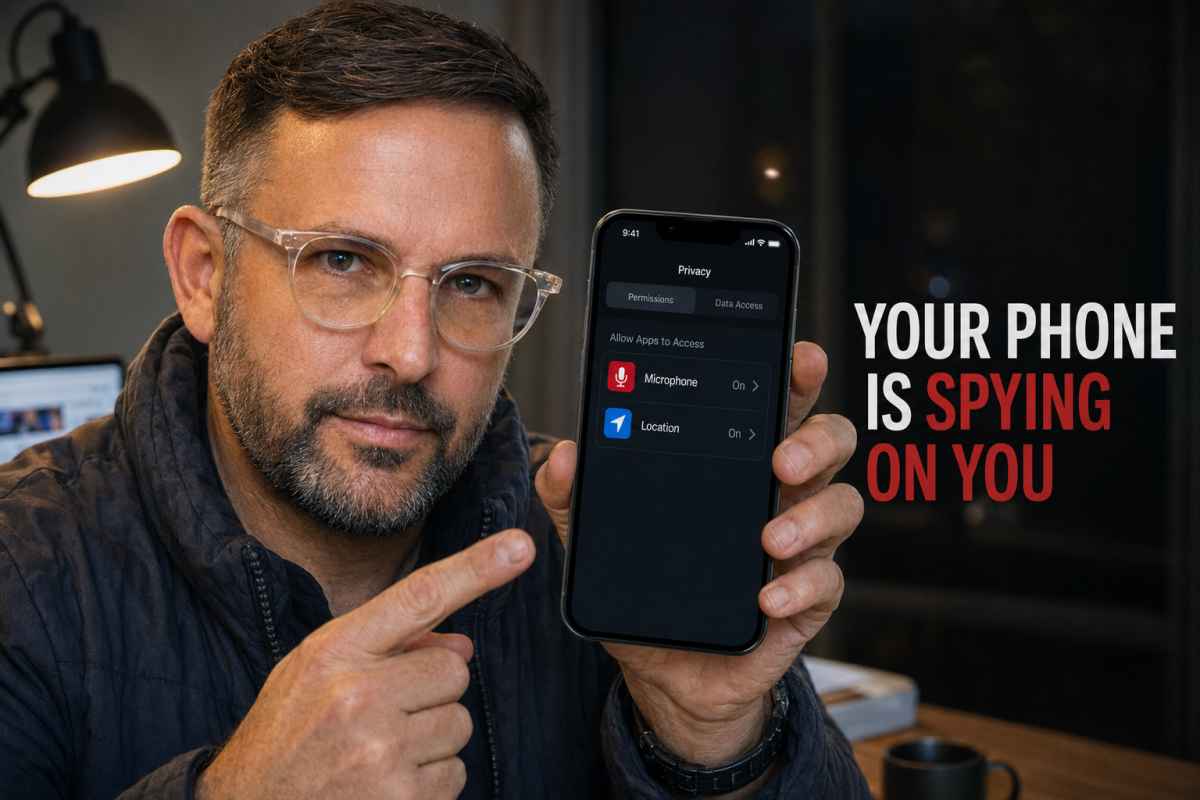


Your smartphone knows where you sleep, where you work, who you speak to and which shops, clinics or businesses you visit. It may know what you search for late at night, which advertisements hold your attention and whether you regularly travel with another person.
That does not necessarily mean somebody is secretly listening through the microphone. The reality is less dramatic, but arguably more disturbing: phones, apps, advertising networks and online accounts can assemble an extraordinarily detailed picture of your life without recording a single private conversation.
Location signals, browsing history, app activity, purchases, contact lists, device identifiers and advertising data can all be combined. What feels like spying is often an automated system joining information that people did not realise they had disclosed.
The US Federal Trade Commission has described the collection practices of major social media and video platforms as “vast surveillance”.
Separate enforcement actions have exposed data brokers accused of selling precise location information capable of revealing visits to medical clinics, places of worship, domestic violence shelters and other sensitive locations.
Your phone does not need to hear you
Many people have experienced the same unsettling moment: they mention a product during a conversation, open social media and immediately see an advertisement for it.
That does not prove the phone was listening. Advertising systems already have access to other signals that can produce an eerily accurate result.
These may include:
- Websites and apps you recently visited
- Searches performed across multiple devices
- Your approximate or precise location
- Shops and venues you regularly visit
- Purchases connected with your account or email
- Videos you watched or paused
- People using the same Wi-Fi network
- Friends, relatives or colleagues with similar interests
- Data purchased from brokers or commercial partners
- Your age, suburb, occupation and estimated income
- Activity connected through a shared Google, Apple or social media account
If someone in your household searches for a product, visits a store selling it or watches several related videos, an advertising system may decide that you are also a likely customer.
There is no need to record an entire conversation when a profile built from thousands of smaller signals can make a remarkably accurate prediction.
That said, microphone abuse is technically possible. An app with microphone permission can access the microphone under circumstances allowed by the operating system. Spyware, stalkerware and compromised devices represent a more serious category of threat and should not be dismissed.
The permissions you forgot about
Most privacy exposure begins with an ordinary request: an app asks for access to your location, contacts, photos, camera, microphone or Bluetooth.
People routinely tap “Allow” because they want to use the app. The permission can remain active long after the feature that required it has been forgotten.
A weather app may have a legitimate reason to request location access. It probably does not need your precise position at all times.
A photo-editing app needs access to selected images, but not necessarily your entire library. A shopping app may offer to find nearby stores, yet that does not mean it should follow your movements in the background.
The Office of the Australian Information Commissioner advises people to examine why an app collects location information, how it uses that data and whether it shares it with third parties. If the purpose is unclear, the safest question is also the simplest: do you really need the app? OAIC
Location is the most revealing permission
A history of your movements can expose far more than your home address. It may reveal your employer, medical appointments, religious activities, relationships, political interests and daily habits.
Even location data presented as anonymous may become identifiable when a device repeatedly spends each night at one residential address and each weekday at one workplace.
Location can be obtained through several channels:
- GPS
- Mobile towers
- Nearby Wi-Fi networks
- Bluetooth beacons
- IP addresses
- Photographs containing location metadata
- Check-ins, deliveries and map searches
- Connected cars, watches and fitness devices
Turning off GPS for one app does not erase previously collected location records. It also does not stop your mobile carrier from operating its network or prevent every form of approximate location detection.
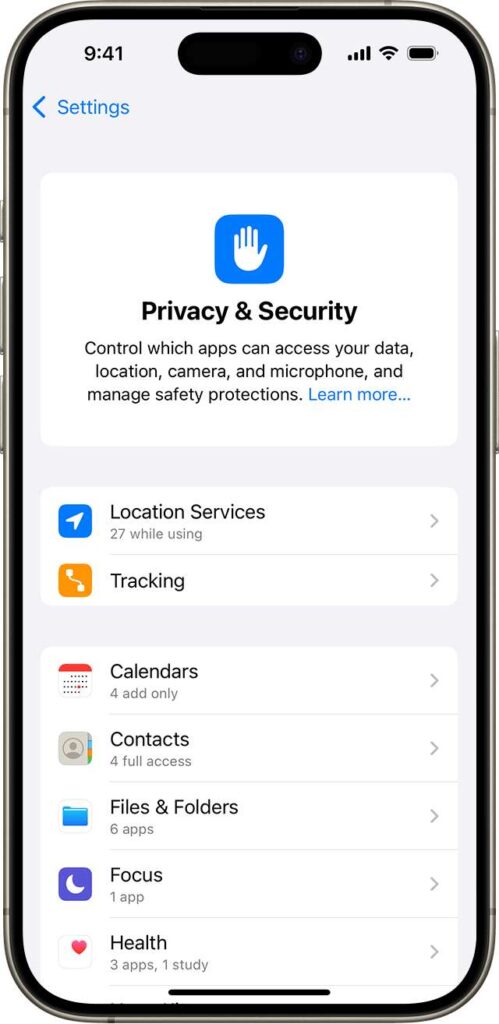
How to lock down an iPhone
Open Settings > Privacy & Security and work through the following areas.
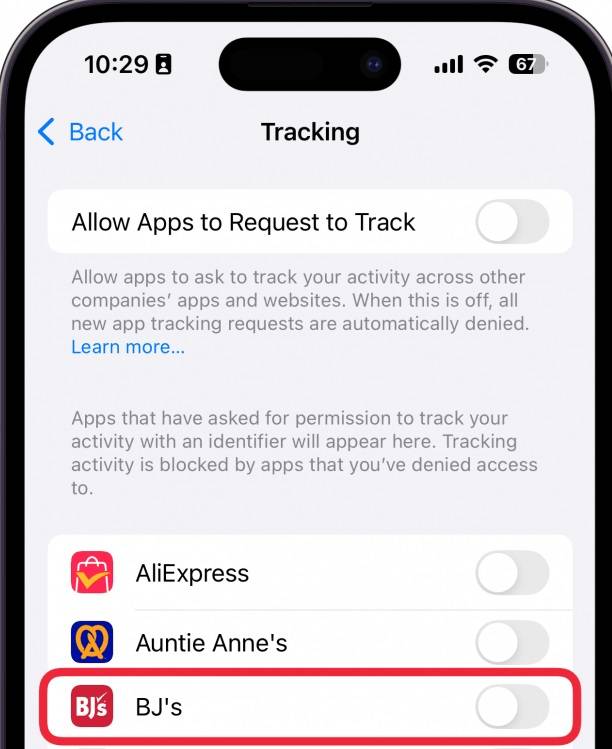
1. Stop unnecessary app tracking
Open Tracking and disable permission for apps that do not need to follow your activity across other companies’ apps and websites.
For the strongest setting, turn off Allow Apps to Request to Track.
Apple says this prevents apps from asking to track activity across services owned by other companies, although it does not stop every form of data collection within an app’s own service.
2. Audit Location Services
Open Location Services and inspect every app.
Use:
- Never when location is unnecessary
- Ask Next Time or When I Share for occasional access
- While Using the App when the feature only needs your location while open
- Always only where there is a clear and essential reason
Turn off Precise Location for apps that only need a general area. A weather service usually needs your suburb, not your position within a few metres.
Apple confirms that location access can be controlled separately for individual apps and system services.
3. Review the sensitive categories
Still under Privacy & Security, inspect:
- Microphone
- Camera
- Contacts
- Photos
- Bluetooth
- Local Network
- Calendars
- Reminders
- Motion & Fitness
- Health
- Files and folders
Remove permissions that do not make sense. Where possible, give an app access only to selected photographs or selected contacts instead of the entire collection.
4. Turn on App Privacy Report
Go to Settings > Privacy & Security > App Privacy Report.
The report shows how often apps access sensitive permissions and which internet domains they contact
Apple says the report covers the previous seven days and remains encrypted on the device. It only begins collecting information after being enabled.
Look for:
- Location access when you were not using the app
- Unexpected microphone or camera activity
- Frequent connections to unfamiliar advertising domains
- Apps contacting an unusually large number of external services
A network connection is not proof of wrongdoing, but unexplained activity deserves investigation.
5. Disable personalised Apple advertising
Open Settings > Privacy & Security > Apple Advertising and turn off Personalised Ads if the option is available in your region.
This limits personalisation within Apple’s advertising system. It does not stop advertisements entirely.
6. Restrict background activity
Open Settings > General > Background App Refresh.
Disable it for apps that have no reason to update while closed. This can reduce unnecessary background activity and save battery, although it is not a complete privacy barrier.
7. Use Safety Check when personal access is a concern
Under Settings > Privacy & Security > Safety Check, iPhone users can review information shared with people and apps, remove unwanted access and examine devices connected to their Apple Account.
This is particularly important after a relationship ends or when another person previously knew the device passcode.
The iOS 26 Privacy Setting Apple Buried Under Search
One of the most important iPhone privacy controls is not located under Privacy & Security. In iOS 26, users need to open:
The location of this switch is particularly questionable. A reasonable person looking to lock down an iPhone would search under Privacy & Security, not a separate Search menu. Its placement makes an important data-sharing control remarkably easy to miss.
Settings > Search > Help Apple Improve Search
This setting is switched on by default. Anyone serious about limiting data collection should turn it off.
Apple’s understated description makes the feature sound like routine product analytics. However, its’s full privacy notice says the information sent through Search can include:
- Safari, Siri and Spotlight search queries
- Visual search queries
- Approximate location
- Topics of interest
- Context surrounding a search
- Suggestions the user selects
- Apps the person uses
- Related device-usage information
- Music and video subscription types
- Requests for directions, music and general information
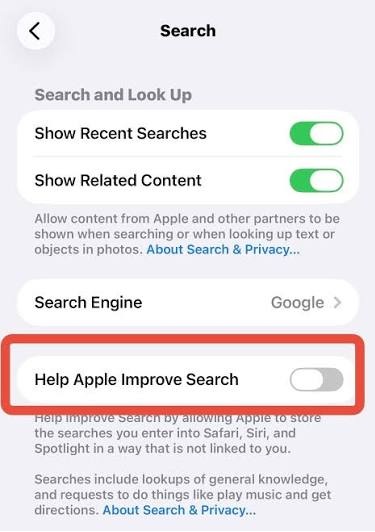
Turning it off does not disable Spotlight, Safari search or normal iPhone search functions. It stops Apple from storing those search queries for its search-improvement program.
Turn it off now
- Open Settings.
- Select Search.
- Find Help Apple Improve Search.
- Switch it off.
Users should also open:
Settings > Privacy & Security > Analytics & Improvements
Then disable Improve Siri & Dictation. Apple warns that Siri searches may still be stored and used to improve Siri when this separate setting remains enabled.
This should also be added near the top of the privacy-lockdown checklist:
Turn off Settings > Search > Help Apple Improve Search. This easily missed iOS 26 setting allows Apple to store search queries and related information, including location, interests, selected suggestions, app usage and device-usage data.
How to lock down an Android phone
Android menus differ between Google Pixel, Samsung, Motorola and other manufacturers, but the controls are generally found under Settings > Security and privacy or Settings > Privacy.
1. Open the Privacy Dashboard
Select Privacy Dashboard and review recent access to:
- Location
- Microphone
- Camera
- Contacts
- Photos and videos
- Nearby devices
- Call logs
- SMS
- Files
Google’s Privacy Dashboard identifies apps that recently used sensitive permissions and allows those permissions to be changed from the same area.
2. Reduce permissions app by app
Use Allow only while using the app, Ask every time or Don’t allow wherever possible.
Turn off precise location for services that only require an approximate area. Be particularly cautious with free utilities, wallpapers, QR scanners, keyboards and unknown apps requesting contacts, accessibility access, SMS or device-administration privileges.
3. Use the microphone and camera kill switches
Recent Android versions provide system-wide camera and microphone controls in Quick Settings.
Swipe down twice from the top of the screen and look for the Camera access and Microphone access tiles. Turning these off blocks apps from using those sensors until access is restored.
4. Review Google Account history
Open your Google Account and select Data & privacy.
Examine:
- Web & App Activity
- Timeline or location history
- YouTube History
- Search history
- Voice and audio activity
- Ad personalisation
Pausing a history setting does not necessarily delete information already stored. Review the existing activity and delete records separately if that is what you want.
Google provides its account Dashboard, My Activity, History Settings and My Ad Center as the main controls for reviewing and limiting stored activity.
5. Limit advertising profiling
Open My Ad Center and turn off personalised advertising if you do not want account activity used to tailor ads.
Depending on the phone and Android version, also look under Settings > Privacy > Ads or Settings > Google > Ads. Review advertising ID and Privacy Sandbox options, including ad topics, app-suggested ads and ad measurement.
Resetting or deleting an advertising identifier can reduce one tracking method, but it does not make the phone anonymous. Companies may still recognise accounts, devices or browsing patterns through other techniques.
Read the label—but do not treat it as an audit
Apple’s App Store privacy labels and Google Play’s Data Safety section can reveal whether an app says it collects location, contact details, purchases, identifiers, diagnostics or browsing activity.
Check these sections before installing anything.
However, the disclosures are largely supplied by developers. Google explicitly states that developers are responsible for making accurate declarations about their practices. Treat the label as useful evidence, not an independent guarantee.
If a torch, calculator or wallpaper app wants location, contacts and microphone access, find another app.
Delete apps you do not use
Every installed app creates another potential path to your information. Old apps may retain permissions, communicate with servers or contain software that is no longer properly maintained.
Remove:
- Apps you no longer recognise
- Services you have not used in months
- Duplicate utilities
- Apps installed from unknown sources
- “Cleaner”, “booster” and battery-saving apps with excessive access
- Free apps whose business model is unclear
Deleting an app does not automatically delete the account or information already held by its operator. Sign in to the service first, request account deletion where available and then uninstall it.
Secure the accounts behind the phone
A perfectly configured phone will not protect you if somebody can access your Apple, Google, email or social media account.
Take these steps:
- Use a strong, unique password for every major account
- Enable multi-factor authentication
- Prefer passkeys or an authenticator app over SMS where supported
- Review signed-in devices and remove anything unfamiliar
- Check account-recovery email addresses and phone numbers
- Remove old third-party app connections
- Protect your primary email account particularly carefully
- Never share a device passcode
- Install operating-system and app security updates promptly
Your email, Apple Account or Google Account is effectively the master key. It may provide access to backups, photographs, location records, messages, passwords and connected devices.
Do not expect a VPN to solve everything
A reputable VPN can hide traffic from the local Wi-Fi operator and make websites see the VPN server’s IP address instead of your home connection.
It cannot stop an app from collecting information you provide directly. It cannot make you anonymous while logged into Facebook, Google, TikTok or another identifiable account. It also does not remove app permissions, advertising identifiers or stored location history.
A VPN changes who can observe part of the connection. It does not switch off the tracking systems inside the apps you use.
Private browsing has similar limits. It mainly stops the browser from retaining some local history after the session. It does not make activity invisible to websites, account providers, network operators or apps.
Warning signs that deserve attention
Investigate further if you notice:
- The microphone or camera indicator appearing unexpectedly
- Location being accessed repeatedly in the background
- An unfamiliar app with accessibility or device-administrator access
- Unknown configuration profiles or management software
- New devices signed into your accounts
- Location sharing that turns itself back on
- Messages marked as read before you open them
- Unexplained changes to passwords or recovery details
- An abusive person knowing private information they should not possess
Battery drain and overheating alone do not prove surveillance. Poor reception, background syncing, software bugs and ageing batteries can cause the same symptoms.
If you suspect stalkerware, do not rush to delete it
Stalkerware is different from ordinary advertising surveillance. It may be installed by somebody with physical access to the phone and can potentially monitor location, communications, browsing activity or stored files.
If you believe an abusive partner or another person is monitoring you, suddenly removing software or changing passwords may alert them and escalate the situation.
Use a different, trusted device to seek assistance and develop a safety plan. Australia’s eSafety Commissioner advises people experiencing technology-facilitated abuse to consider what changes are safe in their circumstances and, where possible, work with a support service.
The 15-minute privacy lockdown
If you do nothing else, complete these steps today:
- Delete apps you no longer use.
- Remove unnecessary location, microphone, camera and contact permissions.
- Change most location permissions to While Using.
- Disable precise location where it is unnecessary.
- Turn off cross-app tracking or personalised advertising.
- Review your Apple or Google account activity history.
- Check every device signed into your main accounts.
- Enable multi-factor authentication.
- Turn on iPhone App Privacy Report or check Android Privacy Dashboard.
- Install all pending security updates.
You cannot prevent a smartphone from generating every operational record. Mobile networks must locate devices to deliver calls and data, and online services need to process some information to function.
But you can stop giving every app unrestricted access to your life.
The most effective privacy tool is not an expensive security product. It is refusing unnecessary permissions, deleting intrusive apps and regularly checking who—or what—still has access.